如何导出 Discord 聊天记录
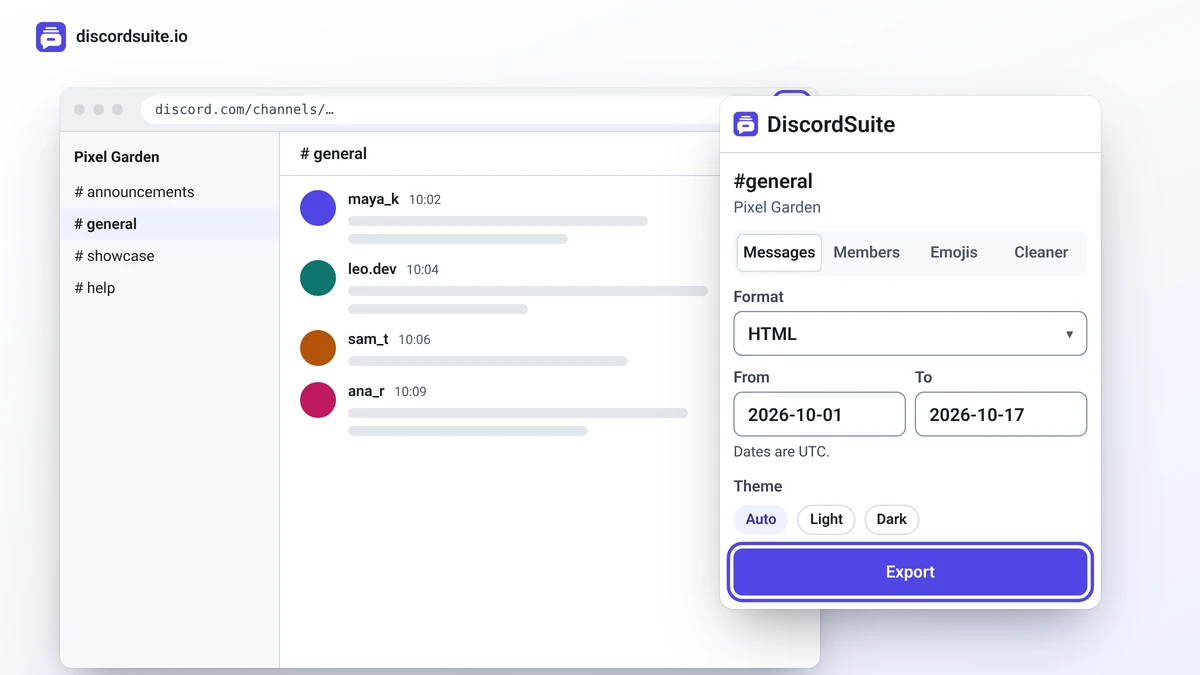
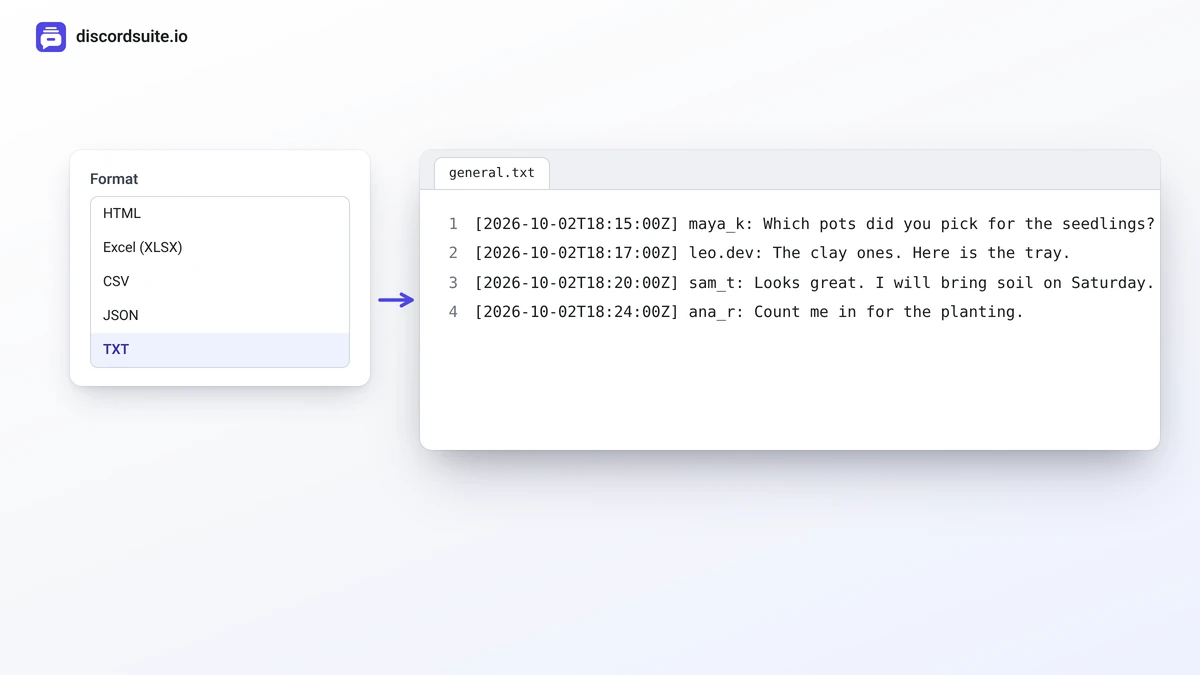
若要导出 Discord 聊天,请在 Chrome、Firefox 或 Edge 的 Discord 中打开该频道,点击 DiscordSuite 扩展,选择一种格式(HTML、PDF、CSV、Excel、JSON 或 TXT),然后点击导出。文件会保存到你的电脑。
- 1
在电脑上的 Chrome、Firefox 或 Edge 中安装 DiscordSuite,并在浏览器中打开 discord.com。
- 2
打开你可读取的频道或讨论串,再打开 DiscordSuite。
- 3
选择格式,并按需设置日期、最早或最新 N 条及筛选条件。
- 4
选择导出并保存文件,检查导出结果及错误提示。
- 5
导出讨论串前请打开其独立网址。不要假定已归档、已锁定或私密讨论串与开放讨论串表现相同。
- Chat Exporter 或 All tools 支持多个频道、仅新消息及将附件与聊天一起打包为 ZIP。每个频道各自保存为文件。
- DiscordSuite 可以将聊天保存为 PDF。请在“格式”菜单中选择 PDF,然后点击导出。
- Discord 没有保存对话的按钮。“保存”或“下载”Discord 消息,指的是把它们导出为电脑上的文件。Discord 自己的数据包只包含你发送过的消息。
- 如果之后要删除自己发送的消息,请先导出,再使用 Message Cleaner。Message Cleaner 只会在你扫描并输入 DELETE 确认之后,删除你自己发送的消息。
如何使用 Discord 聊天导出工具?
在 Chrome、Firefox 或 Edge 中安装 DiscordSuite,打开 discord.com 上的频道、讨论串或私信,点击 DiscordSuite 图标,选择格式并点击导出。聊天导出使用浏览器中已打开的 Discord 会话,无需粘贴令牌。请参阅 Chat Exporter 页面。
如何保存一段 Discord 对话?
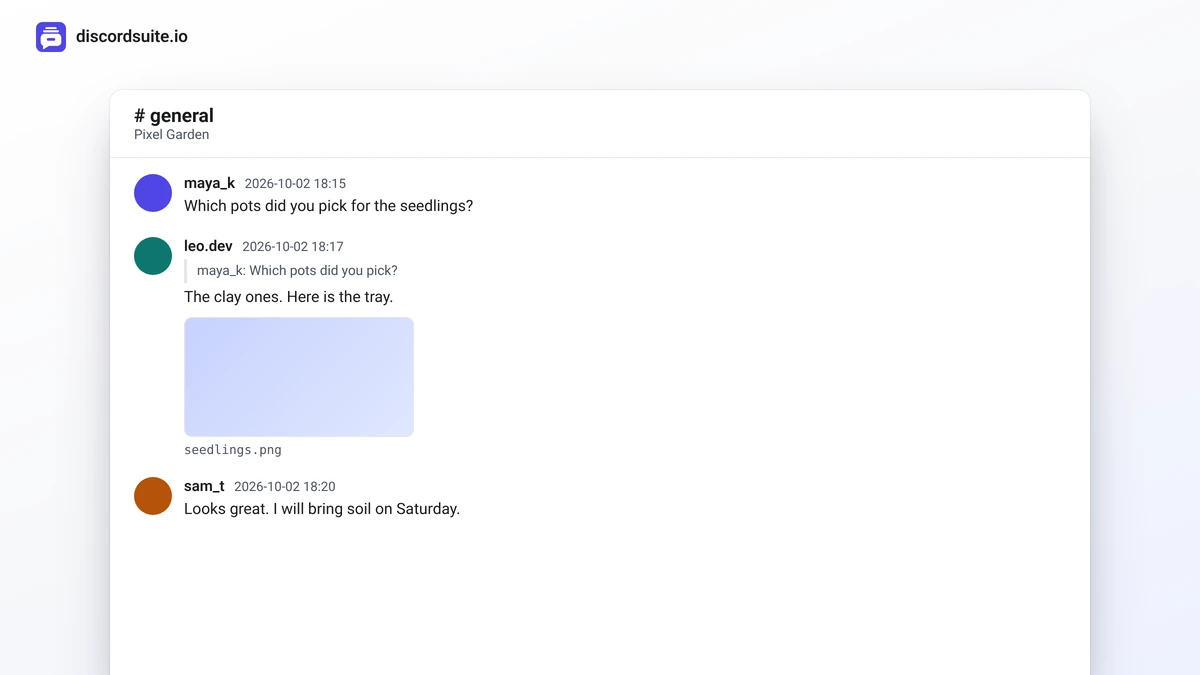
把它导出为文件。打开对话,点击 DiscordSuite,选择 HTML 以便日后像在 Discord 中一样阅读,选择 PDF 以便打印或归档,选择 TXT 得到纯文本记录,或选择 Excel、CSV、JSON 处理数据,然后点击导出。Discord 自带的数据包只包含你发送的消息。