How to export part of a Discord chat
Which setting does what you need?
| You want | Use this in the popup | Free |
|---|---|---|
| Messages from a time span | From and To dates (UTC, both days included) | Yes |
| The newest or oldest messages | Messages: Last N or First N, plus Count | Yes |
| One person's messages | Filters, then From | Yes |
| Only pinned messages | Filters, then Pinned only | Yes |
| Messages with a word, link, image or mention | Filters: Contains text, Has, Mentions | Yes |
Dates, Messages and Filters are separate settings on the same Messages tab, so you can fill in more than one. A message must match every filter field you fill in.
How do I export part of a Discord chat?
- 1
Open discord.com in Chrome, Firefox or Edge, sign in, and open the channel, thread or DM.
- 2
Click the DiscordSuite icon and stay on the Messages tab.
- 3
Choose a format: HTML, PDF, Excel, CSV, JSON or TXT.
- 4
Set the part you want: dates, Messages, or Filters (details below).
- 5
Click Export and save the file.
Open the thread itself to export a thread; a channel export does not include its threads. See How to export a Discord thread. For the full channel walkthrough, see How to export a Discord chat. How DiscordSuite works covers installing and permissions.
- Chat export uses the Discord session already open in your browser.
- You need a Discord account that can open and read the chat. DiscordSuite does not bypass Discord permissions.
How do I export a date range?
Under the format, fill in From and To. Dates are UTC, and both days are included, so From 2026-03-01 and To 2026-03-31 keeps everything sent on those two days and the days between. You can fill in only one of the two dates.
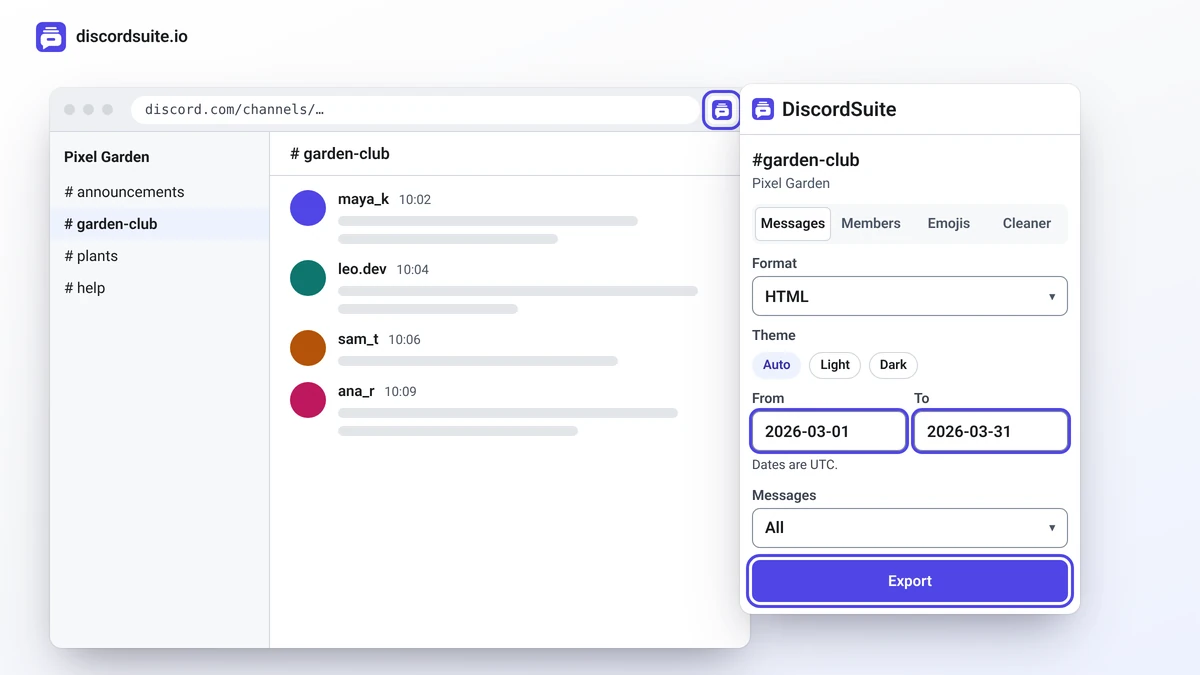
Because dates are UTC, a message sent near midnight in your time zone can fall on a different UTC day. If a message near the edge is missing, move the date by a day. If you have a message ID and want the UTC date it was sent, paste it into the Discord ID lookup.
How do I export the last N messages?
Open the Messages menu, which starts on All. Choose Last N for the newest messages or First N for the oldest, then type a number in Count.
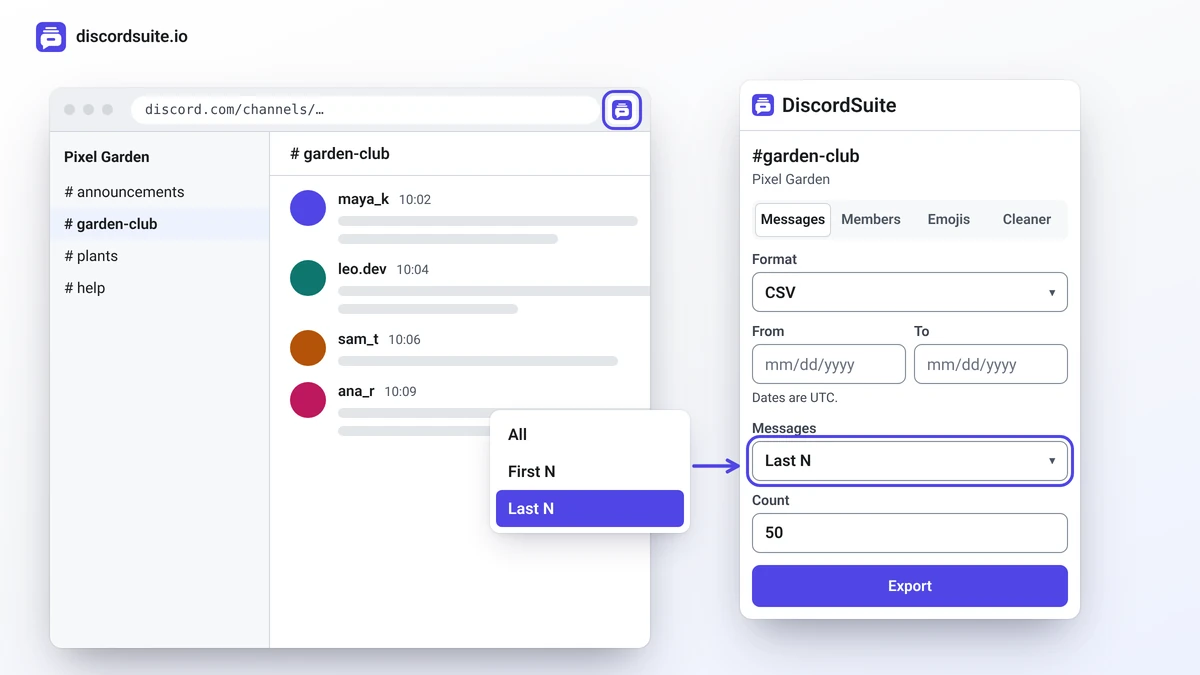
First N and Last N count matching messages. With a filter set, Last N keeps the latest messages that match, not the latest messages in the whole chat. Only new messages cannot be combined with First N or Last N.
How do I export one person's messages?
Open Filters, which starts collapsed, and type the person in From. Use a user ID, a username or a display name. An ID must match exactly. A name must be the whole username or display name, ignoring case, not part of a name. Separate several people with commas to keep a message from any of them.
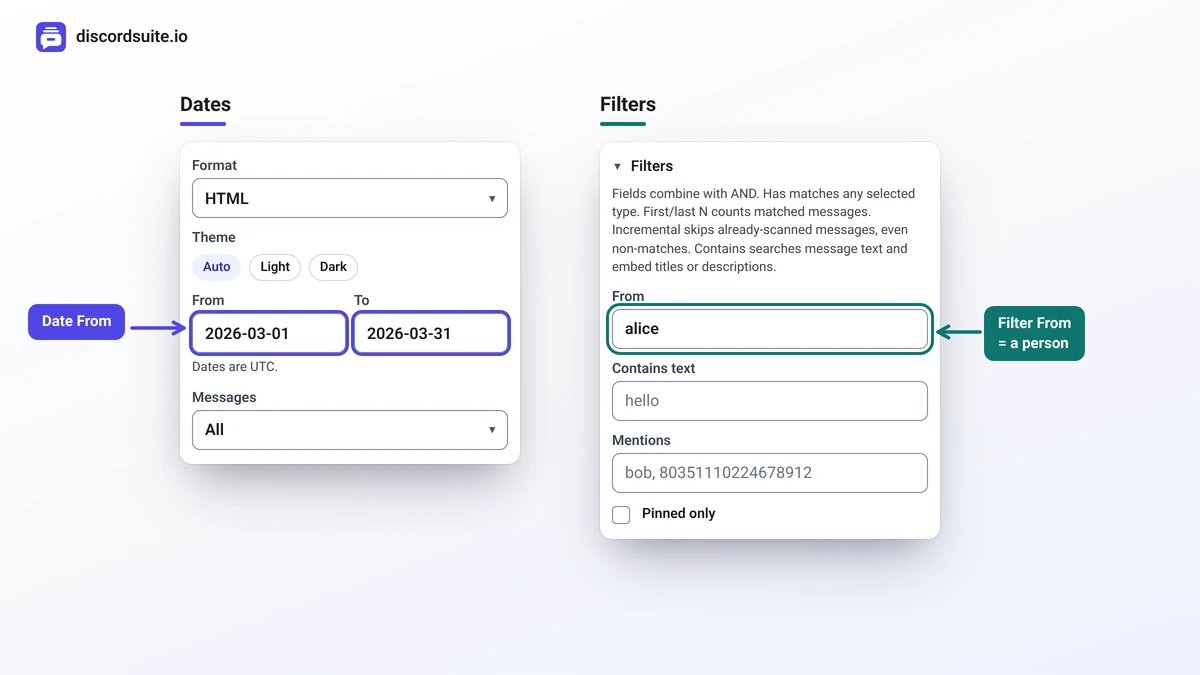
There are two fields called From. The From next to To is a date. The From inside Filters is a person.
How do I export only pinned messages?
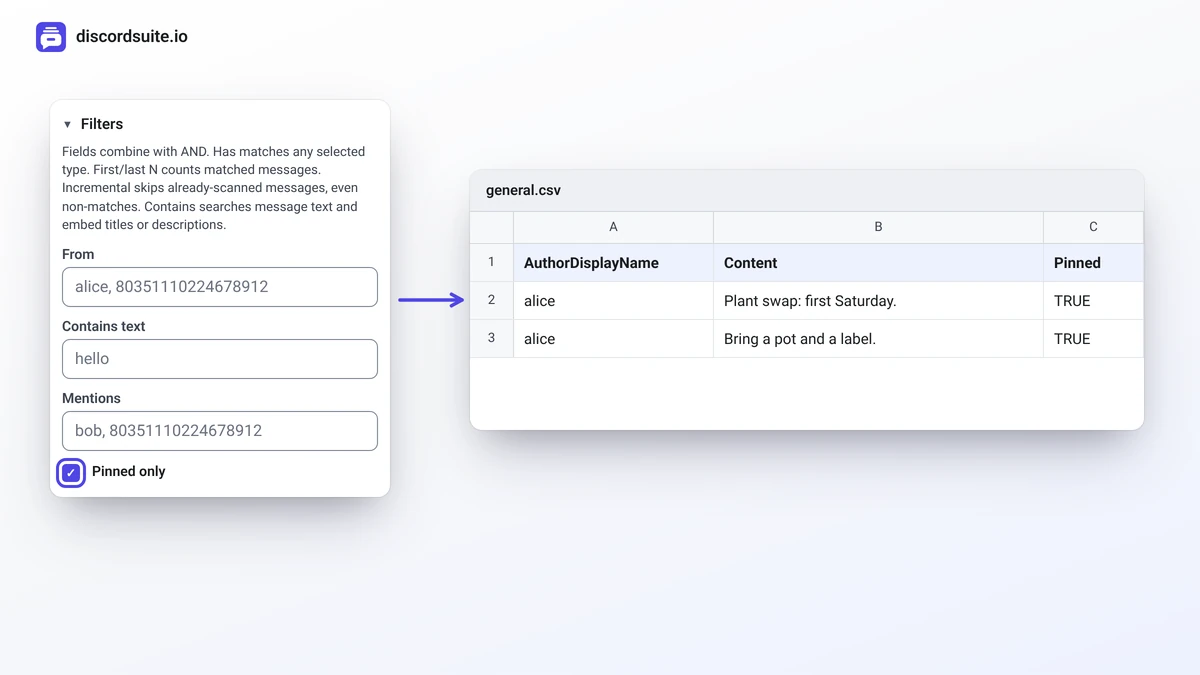
Open Filters and tick Pinned only. Only pinned messages are saved. If you leave it unticked, pinned messages are still included when they match your other fields. Add a name in From to get just that person's pinned messages.
What else can I filter on?
Contains text
A case-insensitive match in the message text, plus embed titles and descriptions.
Has
Image, Video, Audio, File, Link, Embed or Sticker. A message matches if it has any ticked type. To save the files without the chat, see How to download all images from a Discord channel.
Mentions
A user ID, username or display name, matched the same way as From, against the people a message actually mentions.
Every field is explained on the message filters page.
Which format keeps a record of my filters?
Filters work with HTML, PDF, Excel, CSV, JSON and TXT. HTML and TXT write the filters in the header, and JSON stores them in a filters field. CSV and Excel hold the matching rows only. The export formats page lists what each file contains, and How to export a Discord chat to Excel or CSV explains the columns.
What do I get on the free plan, and what needs a paid tool?
Dates, First or Last N and the message filters are free on every format. The free plan has a lifetime message total, and that total counts the messages that match. A paid Chat Exporter or All tools license removes the limit and adds several channels at once with the same filters (each channel is its own file), attachments in one ZIP, and only new messages. See pricing.
Why did my export come back with fewer messages than I expected?
- A person's name did not match. Use the whole username or display name, or switch to the user ID.
- Two or more fields are filled in. Fields combine with AND, so a message has to match all of them.
- Link matches a web address typed in the message text. An address that appears only inside an embed does not count.
- Contains text does not search embed fields other than the title and description.
- Dates are UTC and cover whole days. You cannot pick an hour.
Frequently asked questions
Can I export only part of a Discord chat?
Yes. Use From and To dates for a time span, First N or Last N for a count, or Filters to keep one person's messages or only pinned messages. Whatever does not match is left out of the file.
How do I export Discord messages between two dates?
Open the chat, click DiscordSuite, and fill From and To. Dates are UTC and both days are included. Choose a format and click Export. You can fill only one of the two dates.
How do I export just the latest messages from a Discord channel?
Under Messages, choose Last N and type how many in Count, then export. Last N keeps the newest N messages. With a From filter, it keeps the newest N messages from those people.
How do I export only one person's messages in Discord?
Open Filters and enter the person's user ID, username or display name in From. A name has to be the whole username or display name, ignoring case. Add more people, separated by commas, to keep messages from any of them.
Can I export only pinned messages from a Discord channel?
Yes. Open Filters, tick Pinned only and export. Only pinned messages are saved. Add a name in From to keep just one person's pinned messages.
Can I combine a date range, one person and pinned messages in one export?
Yes. The filter fields combine with AND, so a message has to match every field you fill in. The popup also lets you set dates and First or Last N on the same export. Only new messages cannot be combined with First or Last N.
Do CSV and Excel files show which filters I used?
No. CSV and Excel files contain the matching rows only. HTML and TXT files write the filters in the header, and JSON files store them in a filters field.
Do I need a paid plan to export part of a chat?
No. Dates, First or Last N and the message filters are free. The free plan has a lifetime message total, and that total counts the messages that match. A paid Chat Exporter or All tools license removes that limit.
Related: How to export a Discord chat · How to export a Discord chat to Excel or CSV · How to download all images from a Discord channel · All features · Export formats · Message filters